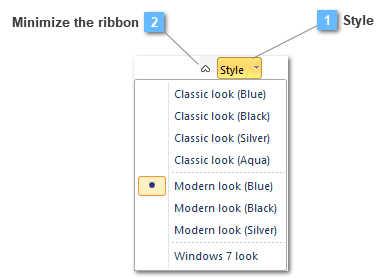
Option in which the CivilFEM interface appearance can be change.
Style themes provides CivilFEM look and feel for application components. Each theme is a totally skinned interface that can be applied to the various set of controls such as ribbons, menus, toolbars, docking panes and more.
Style themes are customizations of the graphical user interface of CivilFEM.
Several looks are available to change the appearance of the windows. User can change the style theme at any time by selecting a different theme:
Classic look (blue, black, silver, aqua).
Modern look (blue, black, silver).
Windows 7 look.
Graphical interface configuration
Display Version
3D technology for graphical view (Automatic/OpenGL).
Application Font
Display font type for properties (Arial, Calibri, Consolas, Verdana).
Application Font Size
Font size for properties display.
Point color
Color assigned to the geometric points: light/dark grey, green, red and yellow colors.
Point shape
Shape or symbol assigned to geometric points: cross or circle.
Title size
Size of the font used to display titles.
Title location
Location of title: Centered, corners or not shown.
Title font
Font used to display titles.
Evaluation Units
Activate conversion of parameters during evaluation.
This button allows the user to minimize the ribbon´s panel.
Minimize ribbon button provides smart layout maximally utilizing the available space.
For example, if a Panel has been stretched and has no place to display all available controls, it becomes a menu button which can display sub-items on a popup menu.