View Options
Grid
One of the view options is the capability of activating a grid in the model, the default grid has its centre of the origin and is 10x10m size. Python commands allow activating and removing the grid and modify its configuration using the following commands:
#Activate the Grid
showGrid(True)
#Deactivate the Grid
showGrid(False)
#Centre the view
lookAtGrid()
Camera
With the camera is possible to make zoom, select different ways of viewing the model and even to take a snapshot of the model using the following commands:
makeZoom: This command allow change zoom and fit the model to the view window by using different arguments:
makeZoom("ZoomIn")
makeZoom("ZoomOut")
makeZoom("Fit")
changeView: This command makes possible to change the view of the model according to their positive or negative ordinates x y z.
changeView("XNegative")
changeView("YPositive")
changeView("ZNegative")
snapShot: Capture a snapshot of the graphical view and store it in a file giving the path and the png, bmp, jpg or gif extension.
snapShot(r".\model image.jpg")
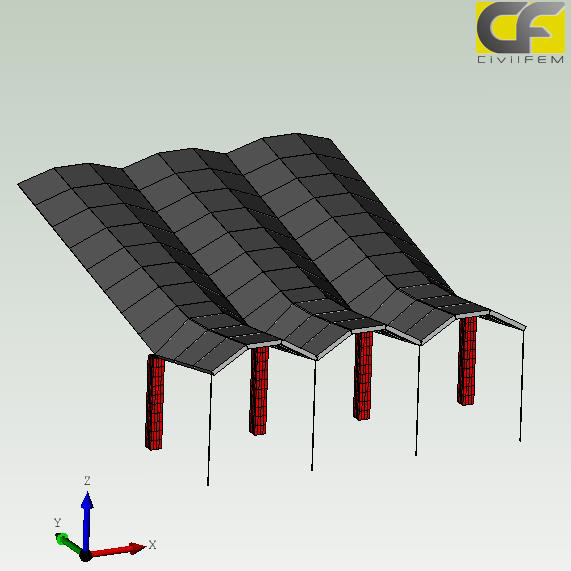
Snapshot of a model in jpg extension
rotateCamera: With this command you can rotate your model in X, Y or Z direction in an angle, only by giving the three coordinates. You can also set the unit type of the angles (“Deg” or “Rad”) if you want, by default takes document units.
rotateCamera(Vector(0,3.1415,0,"Rad"))
rotateCamera((0,180,0))
Progress Bar
If it’s necessary to indicate some type of progress, commands can be used to modify the CivilFEM progress bar:
import time

# Clean the progress bar
resetProgressBar()

# Set the range, the step will go one by one
setProgressBarRange(0, 10)

# Message to show
setProgressBarStatusAndRefresh("Python executing...")

for i in range(10):
	print(f"Iteración {i + 1}")
	time.sleep(0.5)
	stepProgressBar() # Step the progress bar to the next value in the range

resetProgressBar()