Previous button
Previous plate
"Previous" option allows the user to edit the previous plate.
|
|
 Next button
Next plate
"Previous" option allows the user to edit the next plate.
|
|
 Add button
Add plate
"Add" option creates another plate. The user can use the "Add" option as often as necessary in order to define the section.
An example was specified inside the "Steel by plates" description, in "Cross section toolbar" menu. Nevertheless, a new example will be shown below.
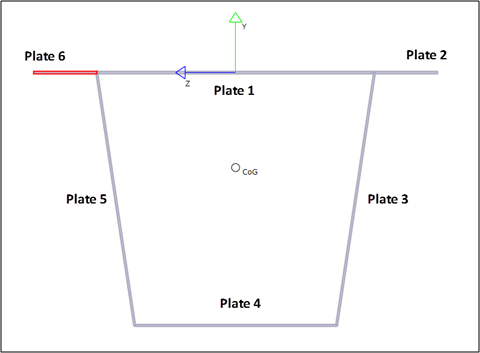
The section is a steel box shape:
Six plates must be defined as follows (in meters):
-
Plate 0: Thickness 0.01; Point 1 (0, 0.55), Point 2 (0, -0.55).
-
Plate 1: Thickness 0.01; Point 1 (0, -0.55), Point 2 (0, -0.8).
-
Plate 2: Thickness 0.01; Point 1 (0, -0.55), Point 2 (-1, -0.4).
-
Plate 3: Thickness 0.01; Point 1 (-1, -0.4), Point 2 (-1, 0.4).
-
Plate 4: Thickness 0.01; Point 1 (-1, 0.4), Point 2 (0, 0.55).
-
Plate 5: Thickness 0.01; Point 1 (0, 0.55), Point 2 (0, 0.8).
|
|
 Remove button
Remove plate
Remove option allows the user to delete any plate from the model.
|
|