

CivilFEM SetUp Options
In this window the parameters CivilFEM will use (Active codes, Units,… ) can be chosen.
The window is built up by the following sheets, identified by a label.
- Codes
- Units
- CF config
- Bridges config (only available if the Bridges and Civil non Linearities Module is activated)
- Geotechnical config (only available if the Geotechnical and Foundations Module is activated)
- Prestressed Concrete config (only available if the Prestressed Concrete Module is activated)
- GUI config
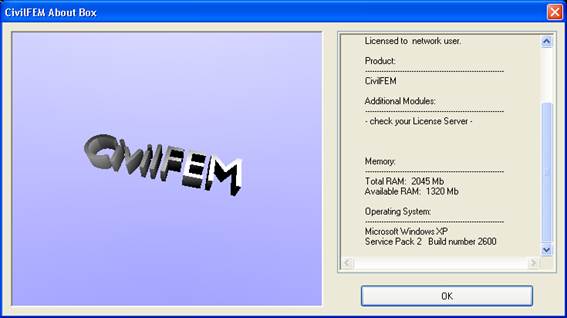
On the lower left corner there is a button labelled About. This button opens a window in which a group of data can be seen. These data are related to the CivilFEM version installed, license, available memory and operating system (~CFABOUT command).
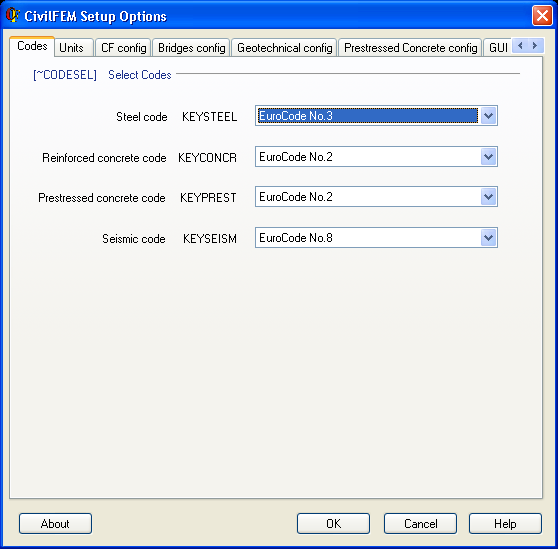
Steel, reinforced concrete, prestressed concrete and seismic codes can be selected in this window. By default the Eurocodes are shown. See ~CODESEL command.
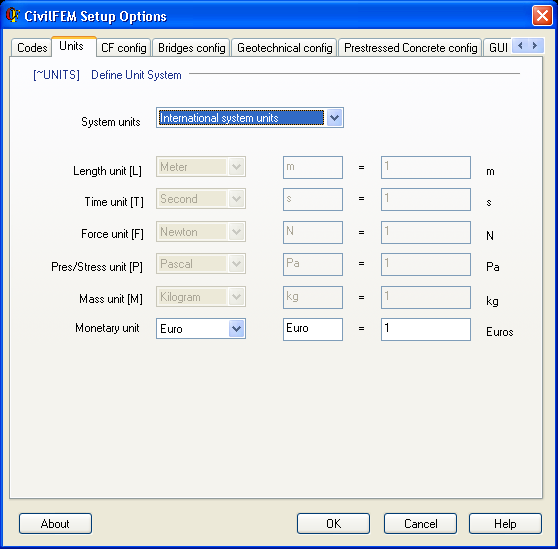
The unit system for all the calculation is selected in this window. By default, CivilFEM adopts the International System (IS). Given that the units are related, only 3 of them may be personalised and the rest are automatically calculated. Results data are given in the corresponding units whose abbreviation must be specified in the second column. See ~UNITS command.
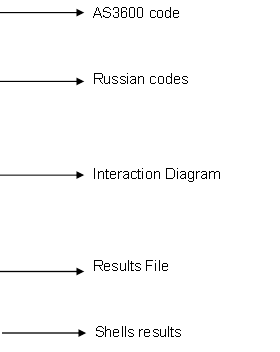
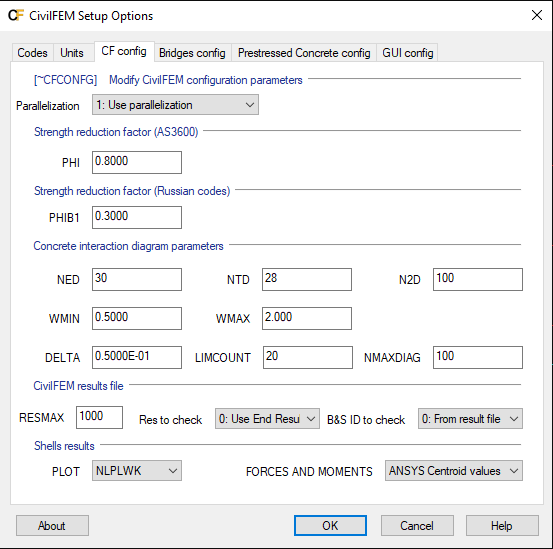
In this section diverse configuration parameters are determined.
Strength reduction factor (AS3600):
- PHI: Strength reduction factor for axial force+bending moment.
Strength reduction factor (Russian codes):
- PHIB1: Strength reduction factor for shear.
Concrete interaction diagram parameters
- NED: Number of steps for strains.
- NTD: Number of steps for angles.
- N2D: Number of steps for 2D analysis.
- WMIN: Minimum reinforcement factor.
- WMAX: Maximum reinforcement factor.
- DELTA: Coefficient to establish the diagram’s center position.
- LIMCOUNT: Maximum number of iterations for the design.
- NMAXDIAG: Maximum number of diagrams stored in file.
CivilFEM result file
- RESMAX: Maximum number of records in CivilFEM results file.
- RES TO CHECK: Forces and moments for check/design process. Use end results or averaged results on nodes.
- B&S ID TO CHECK: Defines where the beam and shell property identification is obtained from. By default use the B&S property obtained from rcv. Also you can select obtain the B&S from the current model in case emodif command has been performed and no need to solve again. This option applies to reinforced concrete and steel checks and designs
Shell result plot
- PLOT: ANSYS result to use for plotting CivilFEM shell results.
- FORCE AND MOMENTS: Use forces and moment from ANSYS centroid values or CivilFEM calculated values on nodes (for shell181 and shell281 it is recommended to activate keyoption for results in middle layer in the last case)
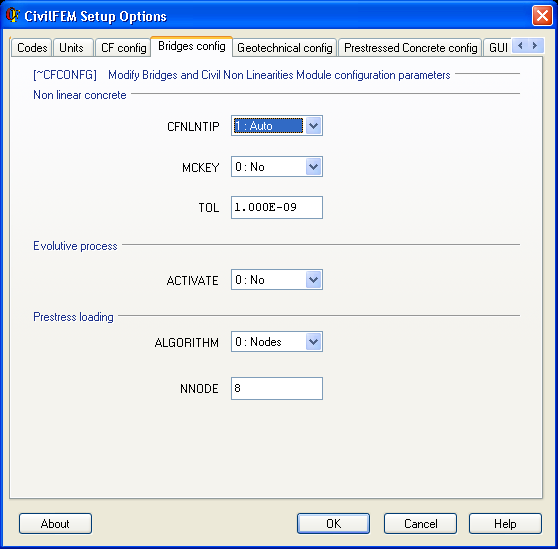
To perform a non linear concrete calculus it is necessary to define the following parameters:
- CFNLNTIP: Automatic generation of real constants.
- MCKEY: Use the moment curvature diagram to perform a simplified calculus.
- TOL: Offsets tolerance.
The evolutive process calculus can be activated in this window. By activating it, the non linear concrete calculus will automatically be deactivated.
When loading the model with the prestressing loads, CivilFEM uses two different algorithms which can be selected in the ALGORITHM combo box. For the nodes algorithm, the number of nodes can be also chosen in the NNODE edit box (minimum 8).
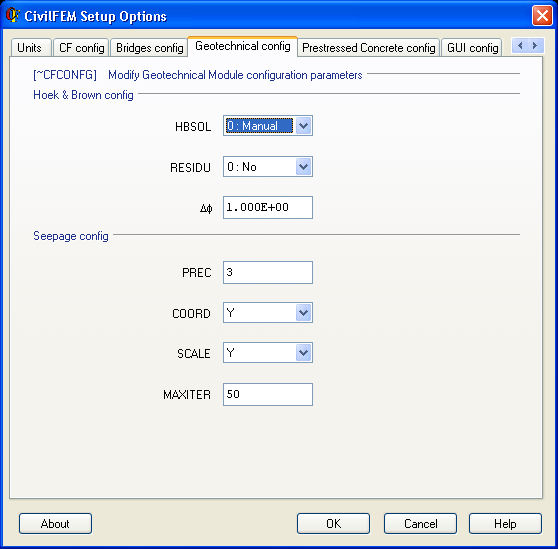
This window is used to establish the Hoek & Brown calculus parameters (Hoek & Brown config) and the seepage analysis parameters (Seepage config).
Hoek & Brown config
- HBSOL: Auto mode (automatic update of material properties between substeps) or manual (material properties updated after each solve).
- RESIDU: Use post failure behaviour material properties.
- Df: Angle of division of Hoek & Brown material curve.
Seepage config
- PREC: Precision (Number of digits).
- COORD: Calculation axis.
- SCALE: Scale based on initial water table location.
- MAXITER: Maximum number of iterations.
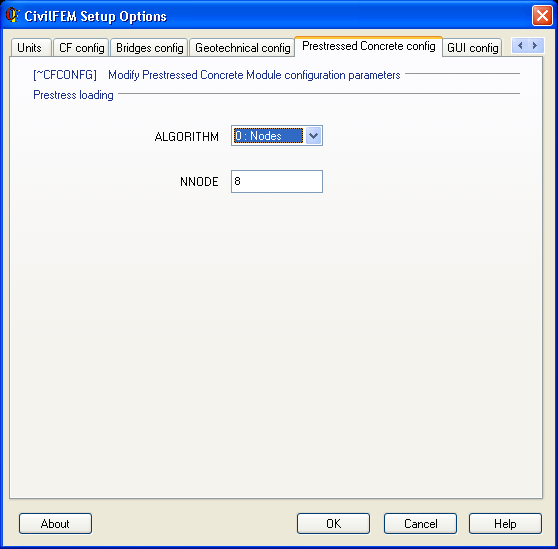
When loading the model with the prestressing loads, CivilFEM uses two different algorithms which can be selected in the ALGORITHM combo box. For the nodes algorithm, the number of nodes can be also chosen in the NNODE edit box (minimum 8).
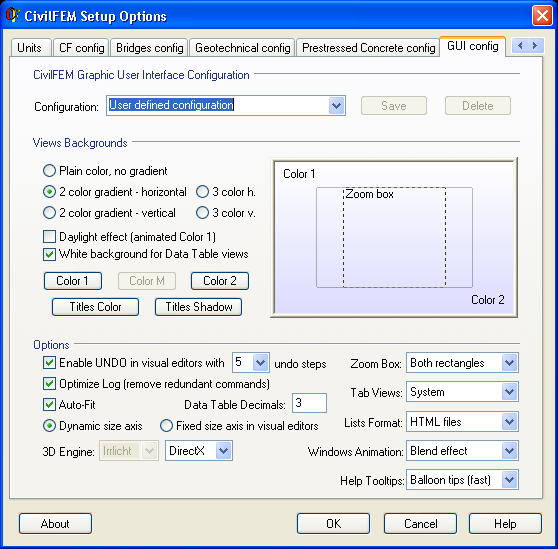
In this tab are located all the graphical options, interface configuration, background colors and the following options:
- The color gradient can be chosen with the options: Plain color, no gradient; 2 color gradient – horizontal; 2 color gradient – vertical; 3 color h (3 color horizontal gradient ), 3 color v (3 color vertical gradient). The colors are selected with the buttons Color 1, Color 2 (only if the gradient option is chosen) and Color M (intermediate color for 3 colors gradient). It is also possible to animate Color 1 as a function of the current time (Daylight effect).
- White background for Data Table views: Sets a white background for the data tables, ignoring any color or gradient chosen for the graphical windows’ background.
- Title color and title shadow: These buttons set the title and shadow colors for the CivilFEM GUI.
- Enable UNDO in visual editor with XX undo steps: Enables the option to undo or redo actions in the CivilFEM HUI. XX is the Undo/Redo available steps. (When it is changed it is necessary to consider the available memory of the computer and the data base size used).
- Optimize log: This option removes the redundant commands produced when the CivilFEM GUI is used.
- Auto-Fit: Fit the objects in the editors.
- Data table decimals. Decimals numbers used in the tables of CivilFEM editors.
- Dynamic size axis/Fixed size axis: Option to show fixed axis or dynamic axis in CivilFEM editors.
- 3D Engine: 3D engine used by CivilFEM in 3D graphical views. The driver can also be selected (Direct X, OpenGL or software emulation).
- Advanced DLL management (32 bits version only): reserved option to handle memory management on 32 bits systems.
- Zoom Box: zone showed in the view when using zoom box. It can be the rectangle selected by the mouse, the rectangle with the real proportions of the view, or both rectangles.
- Tab Views: The different tabs of the editors can be down (as in Windows 2000, but obsolete in Windows XP), up, or depending on the operating system (Win2000: down; WinXP: up).
- Lists Format: Way in which the data/results lists will be shown. It can be ASCII plain text or HTML. This option can be replaced by the ~LSTFMT command.
- Windows Animation: Animation or graphical transition when a window is opened or closed.
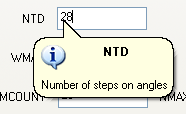
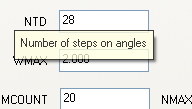
- Help Tooltips: Type of tooltips. Balloon tips are help balloons that are shown each time a control is selected, the cursor is placed in an edit box, etc. The can be show and hide (fast option) or show and stay until a mouse left click is done on any part of the window (keep option). Classical tips are the contextual help texts that are shown when the cursor is placed over a label during a certain time.
|
Balloon tips |
|
Classical tips |
|
|
|
|
The configuration can be saved (SAVE button). Previously saved configurations can be selected from the upper combo list (Configuration:) which also includes several predefined configurations.
Related commands: