

- CivilFEM Documentation
- CivilFEM Commands Reference
- A commands
- B commands
- ~BLCBDEL
- ~BLCBEND
- ~BLCBLD
- ~BLCBPA
- ~BLCBST
- ~BLF2CMB
- ~BLFDEL
- ~BLFDF
- ~BLFLST
- ~BLPL
- ~BLPLPL
- ~BLSA
- ~BLSB
- ~BLSEND
- ~BLSOLVE
- ~BLSST
- ~BLSTF
- ~BLVA
- ~BLVB
- ~BLVC
- ~BLVD
- ~BLVDEL
- ~BLVEND
- ~BLVGEN
- ~BLVLIB
- ~BLVLST
- ~BLVMDF
- ~BLVR
- ~BLVST
- ~BLWRITE
- ~BMSHDEL
- ~BMSHGEN
- ~BMSHLST
- ~BMSHOFF
- ~BMSHPRO
- ~BRAC
- ~BRADDEL
- ~BRADDPL
- ~BRANG
- ~BRBC
- ~BRCS
- ~BRCSOPT
- ~BRDEF
- ~BRDELEL
- ~BRDELPL
- ~BRGEN
- ~BRHL
- ~BRHLDEL
- ~BRHLMDF
- ~BRINIP
- ~BRIQR
- ~BRMVDL
- ~BRPD
- ~BRPLST
- ~BRSBOX
- ~BRSCN
- ~BRSDEL
- ~BRSDIV
- ~BRSGEN
- ~BRSKTCH
- ~BRSLST
- ~BRSMDF
- ~BRSSLAB
- ~BRSTOCS
- C commands
- ~CALSERC
- ~CBDMS
- ~CFABOUT
- ~CFACTIV
- ~CFCLEAR
- ~CFCONFG
- ~CFEXIT
- ~CFFILE2
- ~CFFL3D
- ~CFGET
- ~CFHBRD
- ~CFHBWR
- ~CFLSSLV
- ~CFLSWRT
- ~CFMP
- ~CFMPDEL
- ~CFMPGEN
- ~CFMPLIB
- ~CFMPLST
- ~CFRAPPN
- ~CFRESUM
- ~CFSAVE
- ~CFSET
- ~CFVGET
- ~CFVLEN
- ~CFVMASK
- ~CHKCON
- ~CHKPRS
- ~CHKSTL
- ~CLPRD
- ~CMB
- ~CMBCLR
- ~CMBDAT
- ~CMBDEF
- ~CMBDEL
- ~CMBINQ
- ~CMBLST
- ~CMBMOD
- ~CMBPRM
- ~CMBSTAT
- ~CODESEL
- ~COMBINE
- ~COST
- ~COSTLST
- ~CPDEF
- ~CPSTDEF
- ~CRLTCOM
- ~CRLTDEF
- ~CRLTDEL
- ~CRLTLST
- ~CRLTUSE
- ~CSDEL
- ~CSECDMS
- ~CSGEN
- ~CSIQR
- ~CSLIB
- ~CSLST
- ~CSMRG
- D commands
- E commands
- F commands
- G commands
- H commands
- I commands
- L commands
- M commands
- P commands
- ~P_SPEC
- ~PCCBDEL
- ~PCCBEND
- ~PCCBPA
- ~PCCBST
- ~PCCTMDF
- ~PCDEL
- ~PCEPDEL
- ~PCEPDEF
- ~PCEPGEN
- ~PCEPMDF
- ~PCLOSS
- ~PCPL
- ~PCPLPL
- ~PCPPDEL
- ~PCPPDEF
- ~PCPPGEN
- ~PCPPMDF
- ~PCTNDEL
- ~PCTNDEF
- ~PCTNGEN
- ~PCTNLST
- ~PCTNMDF
- ~PCTYPE
- ~PL2DINT
- ~PL2DPRS
- ~PLCSBS
- ~PLCSCON
- ~PLCSEC3
- ~PLCSSTR
- ~PLFILE
- ~PLHBMAT
- ~PLHCLPF
- ~PLLSCON
- ~PLLSFOR
- ~PLLSPRS
- ~PLLSSTL
- ~PLLSSTR
- ~PLSEEP
- ~PLSHCLP
- ~PLSHCON
- ~PLSHFOR
- ~PLSHPRS
- ~PLSHSTR
- ~PLTEND
- ~PR2DINT
- ~PR2DPRS
- ~PRCON
- ~PRFOR
- ~PRHCLPF
- ~PRPRS
- ~PRSHCLP
- ~PRSTL
- ~PRSTR
- ~PUSHDEF
- ~PUSHLST
- ~PUSHMOD
- ~PUSHSLV
- R commands
- S commands
- ~SBBMDEF
- ~SBCANNT
- ~SBCLEAR
- ~SBLST
- ~SBPAR
- ~/SBSHOW
- ~SBSMDEF
- ~SBSMMDF
- ~SD2SH
- ~SEC2DIN
- ~SEC2DOU
- ~SECMDF
- ~SEEPAGE
- ~SEEPMOD
- ~SHLDEL
- ~SHLGEN
- ~SHLIPSH
- ~SHLLST
- ~SHLMDF
- ~SHLRNF
- ~SHLSHR
- ~SHLSTL
- ~SLDDEL
- ~SLDLST
- ~SLDMDF
- ~SLDSEC
- ~SLPCIR
- ~SLPCIRK
- ~SLPIN
- ~SLPINK
- ~SLPLST
- ~SLPOPT
- ~SLPPOL
- ~SLPPWP
- ~SLPSOL
- ~SLPTAN
- ~SLPTANK
- ~SSECDMS
- ~SSECLIB
- ~SSECPLT
- ~STSTCFT
- ~STSTDEF
- T commands
- U commands
- V commands
- W commands
- 6.1 CivilFEM Combinations
- 6.2 Results Combination in ANSYS and in CivilFEM
- 6.3 Basic Terminology
- 6.4 Types of Combination Rules
- 6.5 Data Groups
- 6.6 Envelopes
- 6.7 Concomitance at Load and Model Level
- 6.8 Comment about Beam188 and Beam189 Elements
- 6.9 Start State Combinations with Prestressing Tendons
- 6.10 Calculation of All Possible Load Cases
- 6.11 Automatic Load Combinations for Standards
- 11–A.1 Introduction
- 11–A.2 Predesign of Rectangular Sections
- 11–A.3 3D Interaction Diagram
- 11–A.4 Axial Load and Biaxial Bending Checking
- 11–A.5 Axial Load and Biaxial Bending Design (Reinforcement Factor)
- 11–A.6 Axial Load and Biaxial Bending Design (Reinforcement Amount)
- 11–A.7 Calculation Codes
- 11–A.8 Previous Considerations to Shear and Torsion Calculation
- 11–A.9 Shear and Torsion according to Eurocode 2 (ENV 1992–1–1:1991)
- 11–A.10 Shear and Torsion according to Eurocode 2 (EN 1992–1–1:2004/AC:2008) and ITER Design Code
- 11–A.11 Shear and Torsion according to ACI 318–05
- 11–A.12 Shear and Torsion according to ACI 318–14
- 11–A.13 Shear and Torsion according to ACI 318–19
- 11–B.1 Introduction
- 11–B.2 Shear and Torsion according to EHE–98
- 11–B.3 Shear and Torsion according to EHE–08
- 11–B.4 Shear and Torsion according to BS8110
- 11–B.5 Shear and Torsion according to AS3600
- 11–B.6 Shear and Torsion according to GB50010–2002
- 11–B.7 Shear and Torsion according to GB50010–2010
- 11–B.8 Shear and Torsion according to NBR6118
- 11–B.9 Shear and Torsion according to AASHTO Standard Specifications for Highway Bridges
- 11–B.10 Shear and Torsion according to Code of Rules 52–101–03 and SP 63.13330.2012
- 11–B.11 Shear and Torsion according to IS 456
- 11–C.1 Introduction
- 11–C.2 Shear and Torsion according to ACI 349–01 y ACI 349–06
- 11–C.3 Shear and Torsion according to ACI 349–13
- 11–C.4 Cracking Analysis
- 11–C.5 Cracking Checking according Eurocode 2 (ENV 1992–1–1:1991)
- 11–C.6 Cracking Checking according Eurocode 2 (EN 1992–1–1:2004/AC:2008) and ITER Design Code
- 11–C.7 Cracking Checking according to ACI 318–05 and ACI 318–14
- 11–C.8 Cracking Checking according to EHE (EHE–98 and EHE–08)
- 13.1 General Concepts
- 13.2 Design for Bending Moment and Torsion – Wood–Armer Method
- 13.3 Design under Bending Moment and In Plane Loading – CEB–FIP Method
- 13.4 Design according to the Orthogonal Directions Method
- 13.5 Design according to the Most Unfavorable Direction Method
- 13.6 Check and Design for Out–of–Plane Shear Loadings according to Eurocode 2 (ENV 1992–1–1:1991)
- 13.7 Check and Design for Out–of–Plane Shear Loadings according to Eurocode 2 (EN 1992–1–1:2004/AC:2008) and ITER Design Code
- 13.8 Check and Design for Out–of–Plane Shear Loadings according to EHE–98
- 13.9 Check and Design for Out–of–Plane Shear Loadings according to EHE–08
- 13.10 Check and Design for Out–of–Plane Shear Loadings according to Code of Rules 52–101–03 and SP 63.13330.2012
- 13.11 Check and Design for Out–of–Plane Shear Loadings according to ACI 318–05
- 13.12 Check and Design for Out–of–Plane Shear Loadings according to ACI 318–14
- 13.13 Check and Design for Out–of–Plane Shear Loadings according to ACI 318–19
- 13.14 Check and Design for Out–of–Plane Shear Loadings according to ACI 349–01 and ACI 349–06 (Reinforced Concrete)
- 13.15 Check and Design for Out–of–Plane Shear Loadings according to ACI 349–13 (Reinforced Concrete)
- 13.16 Check and Design for In–plane Shear Loadings according to ACI 349–01and ACI 349–06
- 13.17 Check and Design for In–plane Shear Loadings according to ACI 349–13
- 13.18 Check and Design according to ACI 359–04 (Reinforced Concrete)
- 13.19 Check and Design according to ACI 359–04 (Prestressed Concrete)
- 13.20 Cracking Checking according Eurocode 2 (EN 1992–1–1:2004/AC:2008)
- 13.21 Cracking Checking according to ACI 318–05, ACI 318–14 and ACI 318–19
- 13.22 Cracking Checking according to Code of Rules 52–101–03 and SP 63.13330.2012
- 14.1 Introduction
- 14.2 Spectrum Calculation according to Eurocode 8 (ENV–1998–1–1:1994)
- 14.3 Spectrum Calculation according to Eurocode 8 (EN–1998–1:2004)
- 14.4 Spectrum Calculation according to NCSE–94
- 14.5 Spectrum Calculation according to NCSE–02
- 14.6 Spectrum Calculation according to GB50011
- 14.7 Spectrum Calculation according to GB50011–2010
- 14.8 Spectrum Calculation according to IT3274
- 14.9 Spectrum Calculation according to AASHTO LRFD Bridge Design Specifications
- 14.10 Spectrum Calculation according to EAK 2000
- 14.11 Spectrum Calculation according to CALTRANS Seismic Design Criteria
- 14.12 Spectrum Calculation according to the Uniform Building Code (1997)
- 14.13 Spectrum Calculation according to PS 92
- 14.14 Spectrum Calculation according to the Indian Standard 1893
- 14.15 Modal Analysis of the Structure
- 14.16 Modes Combination
- 14.17 Push Over Analysis
- 14.18 Seismic Safety Margin
- 17–A.1 Introduction
- 17–A.2 Definition of Layered Soils
- 17–A.3 Ballast Module
- 17–A.4 Retaining Walls 1 ½ D
- 17–A.5 Slope Stability
- 17–A.6 Mohr–Coulomb Plasticity Model
- 17–A.7 Cam–Clay Plasticity Model
- 17–A.8 Hoek and Brown's Failure Criteria
- 17–A.9 Seepage
- 17–A.10 Earth Pressures
- 17–A.11 Terrain Initial Stress
- /SBSHOW
- ACTMAT
- ACTTIME
- ALTER
- BLCBDEL
- BLCBEND
- BLCBLD
- BLCBPA
- BLCBST
- BLF2CMB
- BLFDEL
- BLFDF
- BLFLST
- BLPL
- BLPLPL
- BLSA
- BLSB
- BLSEND
- BLSOLVE
- BLSST
- BLSTF
- BLVA
- BLVB
- BLVC
- BLVD
- BLVDEL
- BLVEND
- BLVGEN
- BLVLIB
- BLVLST
- BLV;DF
- BLVR
- BLVST
- BLWRITE
- BMSHDEL
- BMSHGEN
- BMSHLST
- BMSHOFF
- BMSHPRO
- BRAC
- BRADDEL
- BRADDPL
- BRANG
- BRBC
- BRCS
- BRCSOPT
- BRDEF
- BRDELEL
- BRDELPL
- BRGEN
- BRHL
- BRHLDEL
- BRHLMDF
- BRINIP
- BRIQR
- BRMVDL
- BRPD
- BRPLST
- BRSCN
- BRSDEL
- BRSDIV
- BRSGEN
- BRSKTCH
- BRSBOX
- BRSLST
- BRSMDF
- BRSSLAB
- BRSTOCS
- CALSERC
- CBDMS
- CFABOUT
- CFACTIV
- CFCLEAR
- CFCONFG
- CFEXIT
- CFFILE2
- CFFL3D
- CFGET
- CFHBRD
- CFHBWR
- CFLSSLV
- CFLSWRT
- CFMP
- CFMPDEL
- CFMPGEN
- CFMPLIB
- CFMPLST
- CFRAPPN
- CFRESUM
- CFSAVE
- CFSET
- CFVGET
- CFVLEN
- CFVMASK
- CHKCON
- CHKPRS
- CHKSTL
- CLPRD
- CMB
- CMBCLR
- CMBDAT
- CMBDEF
- CMBDEL
- CMBINQ
- CMBLST
- CMBMOD
- CMBPRM
- CMBSTAT
- CODESEL
- COMBINE
- COST
- COSTLST
- CPDEF
- CPSTDEF
- CRLTCOM
- CRLTDEF
- CRLTDEL
- CRLTLST
- CRLTUSE
- CSDEL
- CSECDMS
- CSGEN
- CSIQR
- CSLIB
- CSLST
- CSMRG
- DAHEAD
- DASEEP
- DEFSPEC
- DIMCON
- DIMPRS
- DIMPRS
- DIMSTL
- DLHEAD
- DLSEEP
- EFFPRES
- EFSAPPL
- EFSCALC
- EFSLST
- ENVDEF
- ENVDEL
- ENVELOP
- ETHSF
- ETHSFE
- FL3DRES
- FMREAD
- FMWRITE
- FRMBS
- FRMCPY
- FRMCR
- FRMDEF
- FRMDEL
- FRMGEN
- FRMGT
- FRMLDS
- FRMLST
- FRMMDL
- FRMVHS
- FRTRCK
- GENSPEC
- GENTEN
- GRCSBS
- GRCSCON
- GRCSEC3
- GRCSSTR
- GRSLPD
- GRSLPR
- GTPD
- HBSOLVE
- HCLPFCN
- HCLPFST
- IDHCLPF
- ILCLOSE
- ILOPEN
- ISOBAR
- L_MOD
- L_SPEC
- LINCMB
- LINLST
- LPRNSOL
- LPSOLVE
- LSTFMT
- MEMBDEL
- MEMBGEN
- MEMBLST
- MEMBPRO
- MOD_SF
- MODLSOL
- P_SPEC
- PCCBDEL
- PCCBEND
- PCCBPA
- PCCBST
- PCCTMDF
- PCDEL
- PCEPDEF
- PCEPDEL
- PCEPGEN
- PCEPMDF
- PCLOSS
- PCPL
- PCPLPL
- PCPPDEF
- PCPPDEL
- PCPPGEN
- PCPPMDF
- PCTNDEF
- PCTNDEL
- PCTNGEN
- PCTNLST
- PCTNMDF
- PCTYPE
- PL2DINT
- PL2DPRS
- PLCSBS
- PLCSCON
- PLCSEC3
- PLCSSTR
- PLFILE
- PLHBMAT
- PLHCLPF
- PLLSCON
- PLLSFOR
- PLLSPRS
- PLLSSTL
- PLLSSTR
- PLSEEP
- PLSHCLP
- PLSHCON
- PLSHFOR
- PLSHPRS
- PLSHSTR
- PLSHPRS
- PLTEND
- PR2DINT
- PR2DPRS
- PRCON
- PRFOR
- PRHCLPF
- PRPRS
- PRSHCLP
- PRSTL
- PRSTR
- PUSHDEF
- PUSHLST
- PUSHMOD
- PUSHSLV
- RCVWRT
- REDEF
- REDEL
- RETROFT
- RNFDEF
- RNFMDF
- SBBMDEF
- SBCANNT
- SBCLEAR
- SBLST
- SBPAR
- SBSMDEF
- SBSMMDF
- SD2SH
- SEC2DIN
- SEC2DOU
- SECMDF
- SEEPAGE
- SEEPMOD
- SHLDEL
- SHLGEN
- SHLIPSH
- SHLLST
- SHLMDF
- SHLRNF
- SHLSHR
- SHLSTL
- SLDDEL
- SLDLST
- SLDMDF
- SLDSEC
- SLPCIR
- SLPCIRK
- SLPIN
- SLPINK
- SLPLST
- SLPOPT
- SLPPOL
- SLPPWP
- SLPSOL
- SLPTAN
- SLPTANK
- SSECDMS
- SSECLIB
- SSECPLT
- STSTCFT
- STSTDEF
- TENLD
- TERDEF
- TERDEL
- TERGEN
- TERLST
- TETHEX
- TIS
- TN2DIN
- TNADDEL
- TNADDPL
- TNADV
- TNGEN
- TNINIP
- TNSKTCH
- TPLST
- TPHASE
- TPOST
- TPSET
- TREFINE
- TRGDEF
- TRGDEL
- TRGLST
- TRGUPT
- TSOLVE
- TSTEP
- TTRUSS
- UNITS
- UPDATE
- VARTH
- VERIF
- VWHTML
- VWTXT
- VWXLS
- WALLANC
- WALLGEN
- WALLINI
- WALLJNT
- WALLMOD
- WALLSOL
- WALLSTP
- WATTAB
- WEIGHT
- WTSLP
- WTSOLVE
Interaction Diagram Results
CivilFEM represents in this window the 3D interaction diagram of the section.
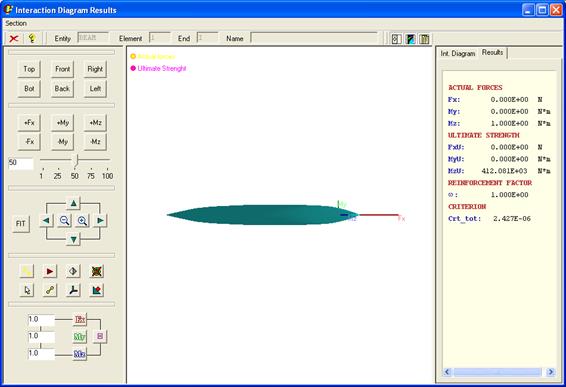
Each option available in this window is explained hereafter:
Bar Menu
Section Menu
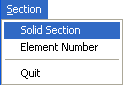
Solid Section – Selects a solid section.
Element Number – Selects the section of an element.
Quit – Closes the window.
Buttons Bar
 Closes window
 Shows help
 Type of element
chosen for the representation.
Type of element
chosen for the representation.
 Number of element
 Element’s
end
Element’s
end
 Name of element
 Activate/deactivate
representation controls
Activate/deactivate
representation controls
 Activate/deactivate
interaction diagram
Activate/deactivate
interaction diagram
 Activate/deactivate element
data view.
Activate/deactivate element
data view.
Representation Controls





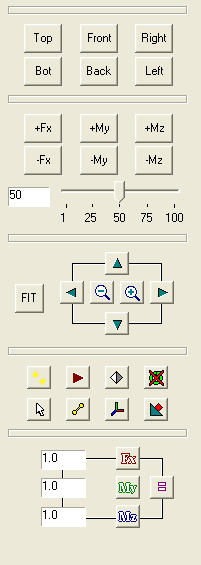
Visualization Utilities
 |
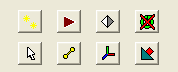
1 – Alternates between shade face  and interpolated shade
  .
.
2
- Alternates between conic perspective  and ortonormal
  .
.
3
- Visualization of points  ,
lines
,
lines  or
surfaces
or
surfaces  .
.
4
– Activate  or
deactivate
or
deactivate  automatic
animation.
automatic
animation.
5
- Alternates between normal  ,
dynamic in model
,
dynamic in model  and
dynamic with lights
and
dynamic with lights  modes. The dynamic mode
allows to change the diagram point of view, by clicking with the mouse in the
representation window, as in the Dynamic Mode control of the PAN,
ZOOM, ROTATE utility of ANSYS.
modes. The dynamic mode
allows to change the diagram point of view, by clicking with the mouse in the
representation window, as in the Dynamic Mode control of the PAN,
ZOOM, ROTATE utility of ANSYS.
6
– Activate  or
deactivate
or
deactivate  the
representation of the calculation status.
the
representation of the calculation status.
7
– Activate  or
deactivate
or
deactivate  the
representation of the axis values.
the
representation of the axis values.
8
- Alternates between the visualization modes opaque  and transparent .